> ## Documentation Index
> Fetch the complete documentation index at: https://docs.portalhq.io/llms.txt
> Use this file to discover all available pages before exploring further.
# Overview
> Connect your Due account to Portal to move money between fiat and crypto with your Portal wallets.
## Overview
Portal integrates with [Due](https://www.opendue.com/) so you can move money between fiat and crypto through Portal Client API endpoints, including global payins and payouts, virtual accounts, and FX.
This page covers one-time setup in the Portal Dashboard and links to workflow guides.
## Steps to enable the Portal Due integration
### 1. Get your Due API keys
* Request API access from Due at [opendue.com/api](https://www.opendue.com/api) for the environments you plan to use (sandbox and production keys are issued separately).
Keep your Due API keys secure. You will configure them in Portal in the next step, and Portal will proxy requests server-side.
### 2. Enable the Due integration in Portal
1. Open the [Portal Dashboard](https://app.portalhq.io).
2. Navigate to the `Integrations` page.
3. Locate `Due` and add the integration.
4. Paste your Due API key for the selected Portal environment.
5. Optionally set the application fees you charge on top of Due's fees. End-user clients can't override them. See [Application fees](/integrations/On-Off-Ramp/due-fees).
6. Save.
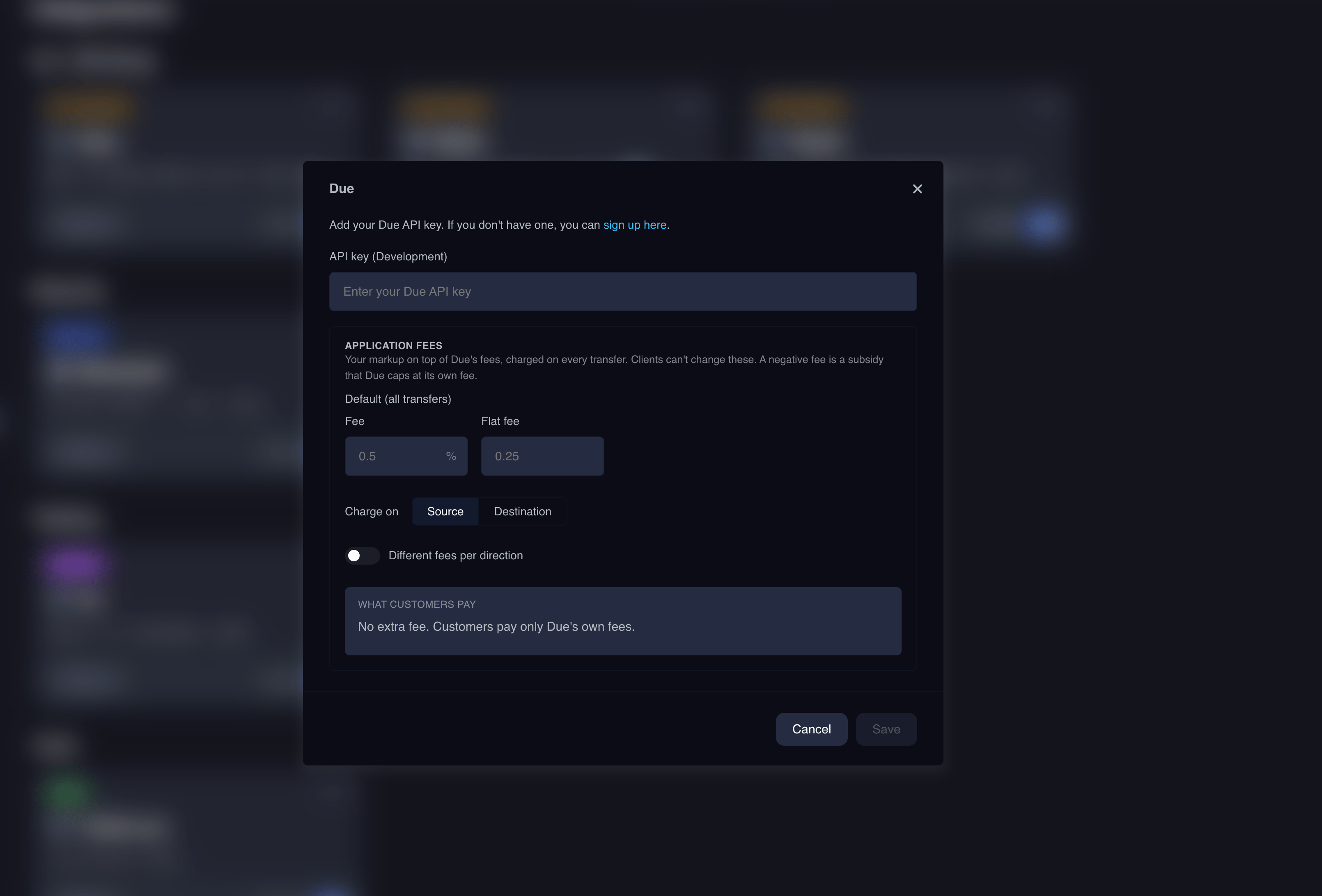 Integrations are environment-scoped. Configure Due separately for each environment (for example Development and Production), using the matching Due sandbox or production API key.
### 3. Configure webhooks
Due webhook endpoints are managed through the Portal Custodian API rather than a provider dashboard.
See [Webhooks](/integrations/On-Off-Ramp/due-webhooks).
## Supported rails and currencies
Due's coverage is channel-driven and evolves over time. Rather than hard-coding a list, query the channels endpoint at runtime to populate dropdowns and validate selections:
* Channels: `GET /clients/me/integrations/due/channels` (pass `onlyAvailable=true` to filter to channels the customer can use today)
For onchain recipients, Portal accepts a CAIP-2 `chainId` and maps it to the Due recipient schema, defaulting the address to the client's Portal wallet when none is provided:
| CAIP-2 namespace | Due schema |
| ---------------- | ---------- |
| `eip155:*` | `evm` |
| `solana:*` | `solana` |
| `tron:*` | `tron` |
See [Payins](/integrations/On-Off-Ramp/due-payins) for end-to-end examples.
## Workflow guides
* [KYC onboarding](/integrations/On-Off-Ramp/due-kyc)
* [Payins](/integrations/On-Off-Ramp/due-payins)
* [Payouts](/integrations/On-Off-Ramp/due-payouts)
* [Virtual accounts](/integrations/On-Off-Ramp/due-virtual-accounts)
* [Application fees](/integrations/On-Off-Ramp/due-fees)
* [Webhooks](/integrations/On-Off-Ramp/due-webhooks)
## API reference
Open the interactive Due endpoints reference.
If you are implementing payin and payout flows, start with KYC first. Transfer endpoints require a provisioned Due customer with approved KYC.
Integrations are environment-scoped. Configure Due separately for each environment (for example Development and Production), using the matching Due sandbox or production API key.
### 3. Configure webhooks
Due webhook endpoints are managed through the Portal Custodian API rather than a provider dashboard.
See [Webhooks](/integrations/On-Off-Ramp/due-webhooks).
## Supported rails and currencies
Due's coverage is channel-driven and evolves over time. Rather than hard-coding a list, query the channels endpoint at runtime to populate dropdowns and validate selections:
* Channels: `GET /clients/me/integrations/due/channels` (pass `onlyAvailable=true` to filter to channels the customer can use today)
For onchain recipients, Portal accepts a CAIP-2 `chainId` and maps it to the Due recipient schema, defaulting the address to the client's Portal wallet when none is provided:
| CAIP-2 namespace | Due schema |
| ---------------- | ---------- |
| `eip155:*` | `evm` |
| `solana:*` | `solana` |
| `tron:*` | `tron` |
See [Payins](/integrations/On-Off-Ramp/due-payins) for end-to-end examples.
## Workflow guides
* [KYC onboarding](/integrations/On-Off-Ramp/due-kyc)
* [Payins](/integrations/On-Off-Ramp/due-payins)
* [Payouts](/integrations/On-Off-Ramp/due-payouts)
* [Virtual accounts](/integrations/On-Off-Ramp/due-virtual-accounts)
* [Application fees](/integrations/On-Off-Ramp/due-fees)
* [Webhooks](/integrations/On-Off-Ramp/due-webhooks)
## API reference
Open the interactive Due endpoints reference.
If you are implementing payin and payout flows, start with KYC first. Transfer endpoints require a provisioned Due customer with approved KYC.