> ## Documentation Index
> Fetch the complete documentation index at: https://docs.portalhq.io/llms.txt
> Use this file to discover all available pages before exploring further.
# Enable authentication
> Turn Portal-managed end user authentication on for an environment and configure which sign-in methods it accepts.
Authentication is configured per environment from the
[Portal Admin Dashboard](https://app.portalhq.io). Your Development and
Production environments have separate settings, separate credentials, and
separate Auth Environment IDs, so you can enable a method in Development without
affecting live users.
## Open the configuration page
Step 1: Log in to the [Portal Admin Dashboard](https://app.portalhq.io) and
select the environment you want to configure.
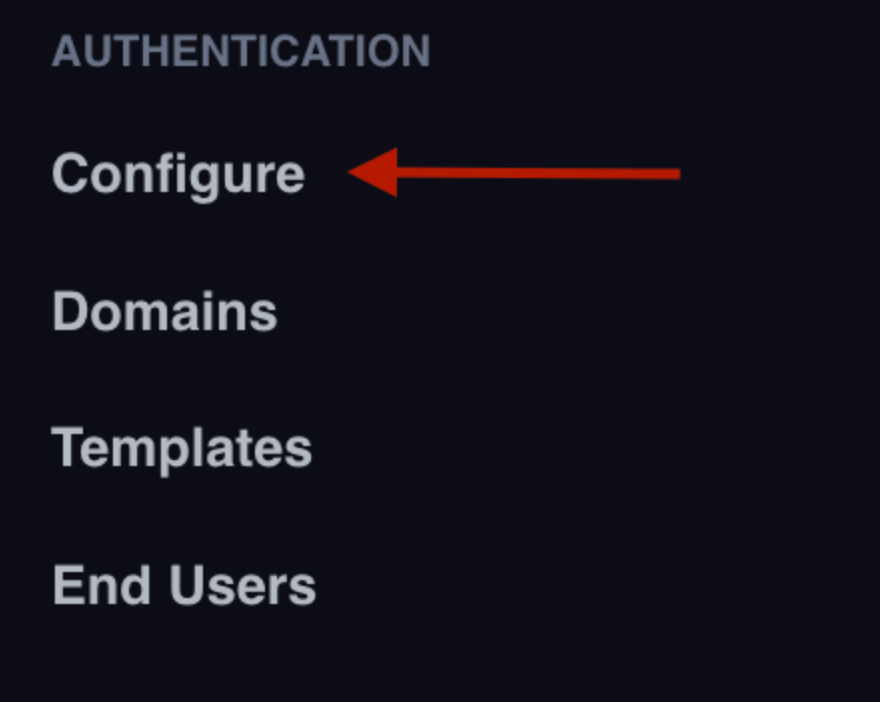
Step 2: Click **Configure** in the left sidebar, under Authentication.
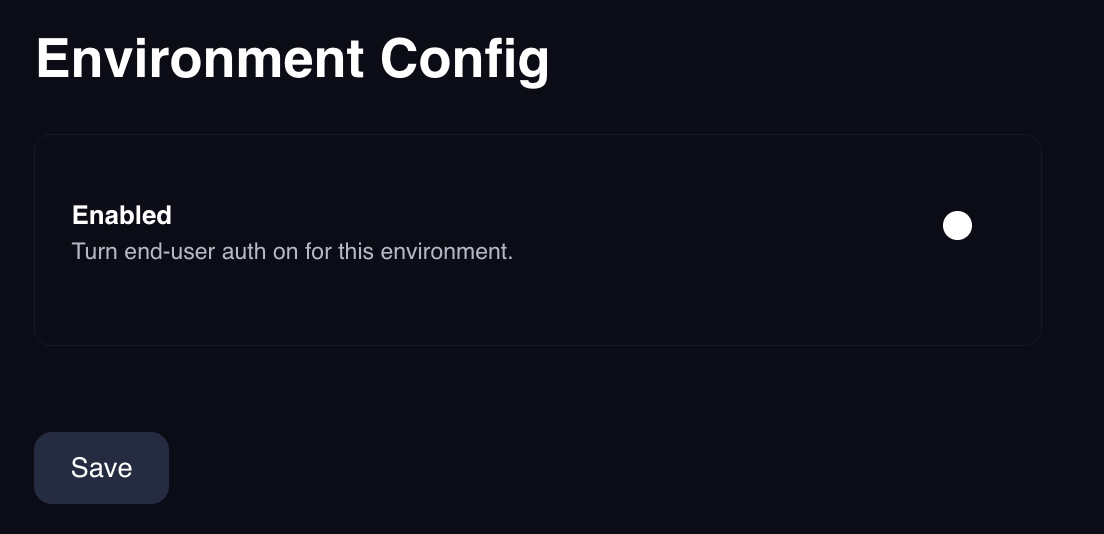
 Step 3: Turn on **Enabled**. Until you do, the rest of the page stays hidden and
every Authentication API request for this environment is rejected with `401`.
Step 3: Turn on **Enabled**. Until you do, the rest of the page stays hidden and
every Authentication API request for this environment is rejected with `401`.
 ## Auth Environment ID
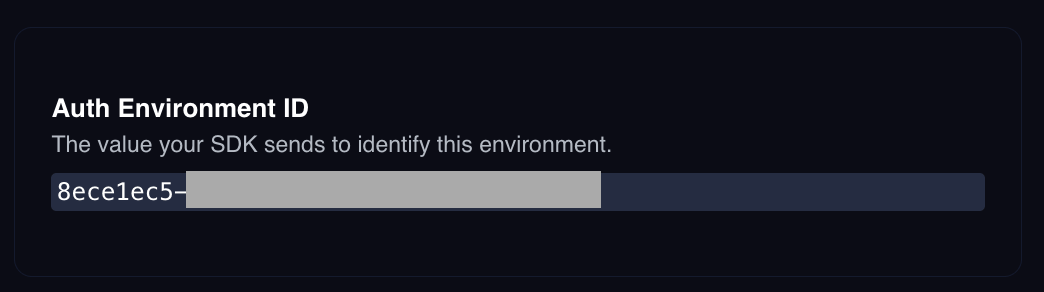
The **Auth Environment ID** is the value your app sends in the
`x-portal-auth-environment-id` header on every Authentication API request. Portal
generates it for you and it does not change. Copy it from this section.
## Auth Environment ID
The **Auth Environment ID** is the value your app sends in the
`x-portal-auth-environment-id` header on every Authentication API request. Portal
generates it for you and it does not change. Copy it from this section.
 Each environment has its own Auth Environment ID. You will also need it when
registering redirect URIs with Google and Apple.
## General
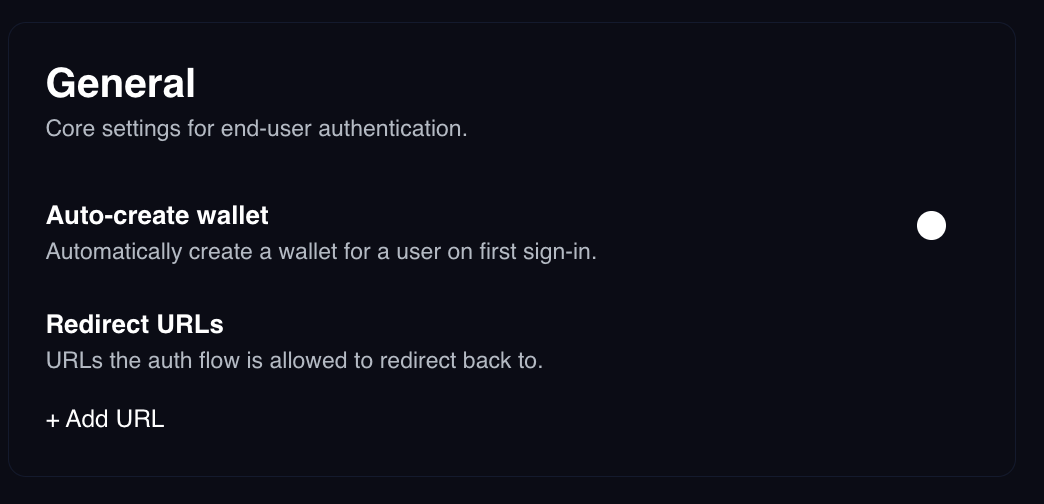
**Auto-create wallet** records whether your app should create a wallet for a user
as soon as they finish signing in. This is a boolean that is internally used in
Portal SDKs to signal if a wallet should be created at the time an End User is
created.
**Redirect URLs** is the allow list of pages in your app that a sign-in is
allowed to return a user to. Add every callback page you use, for example
`https://example.com/callback`.
Each environment has its own Auth Environment ID. You will also need it when
registering redirect URIs with Google and Apple.
## General
**Auto-create wallet** records whether your app should create a wallet for a user
as soon as they finish signing in. This is a boolean that is internally used in
Portal SDKs to signal if a wallet should be created at the time an End User is
created.
**Redirect URLs** is the allow list of pages in your app that a sign-in is
allowed to return a user to. Add every callback page you use, for example
`https://example.com/callback`.
 Redirect URLs are matched by exact string comparison. Wildcards and path
prefixes are not supported, and `https://example.com/callback` does not match
`https://example.com/callback/` or `https://example.com/callback?next=/home`. Add
each exact URL you intend to pass as `redirectUrl`.
A request whose `redirectUrl` is not on this list is rejected with `401`. This is
what stops someone who has your Auth Environment ID from redirecting your users
and their sign-in tokens to a site they control.
## Choose sign-in methods
Each method has its own section with its own toggle. Enabling a method adds it to
the `allowedAuthMethods` array returned by `GET /auth/methods`.
* **Email Magic Link.** No credentials to enter here, but before you can send
anything you need a verified sending domain and an email template. See
[Email magic links](/resources/authentication/email-magic-links).
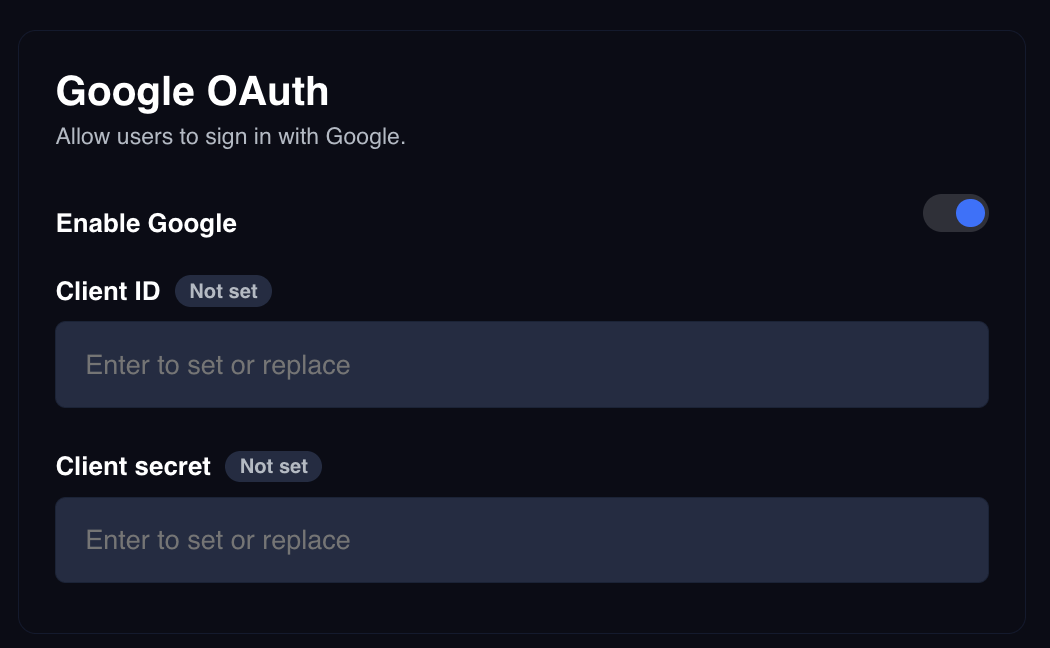
* **Google OAuth.** Requires a Client ID and Client secret from Google Cloud
Console. See [Google OAuth](/resources/authentication/google-oauth).
* **Apple OAuth.** Requires a Team ID, App ID, Service ID, Key ID, and private
key from your Apple Developer account. See
[Apple OAuth](/resources/authentication/apple-oauth).
### Provider credentials are write-only
Portal encrypts provider secrets and never returns them. If you need to check
whether the credentials are configured or not, you can check the tag on the labels of
the form. You can still replace the value if needed.
Redirect URLs are matched by exact string comparison. Wildcards and path
prefixes are not supported, and `https://example.com/callback` does not match
`https://example.com/callback/` or `https://example.com/callback?next=/home`. Add
each exact URL you intend to pass as `redirectUrl`.
A request whose `redirectUrl` is not on this list is rejected with `401`. This is
what stops someone who has your Auth Environment ID from redirecting your users
and their sign-in tokens to a site they control.
## Choose sign-in methods
Each method has its own section with its own toggle. Enabling a method adds it to
the `allowedAuthMethods` array returned by `GET /auth/methods`.
* **Email Magic Link.** No credentials to enter here, but before you can send
anything you need a verified sending domain and an email template. See
[Email magic links](/resources/authentication/email-magic-links).
* **Google OAuth.** Requires a Client ID and Client secret from Google Cloud
Console. See [Google OAuth](/resources/authentication/google-oauth).
* **Apple OAuth.** Requires a Team ID, App ID, Service ID, Key ID, and private
key from your Apple Developer account. See
[Apple OAuth](/resources/authentication/apple-oauth).
### Provider credentials are write-only
Portal encrypts provider secrets and never returns them. If you need to check
whether the credentials are configured or not, you can check the tag on the labels of
the form. You can still replace the value if needed.
 ## Require two-factor authentication
The **TOTP** section adds a second factor to every sign-in for this environment,
whichever method the user chose.
## Require two-factor authentication
The **TOTP** section adds a second factor to every sign-in for this environment,
whichever method the user chose.
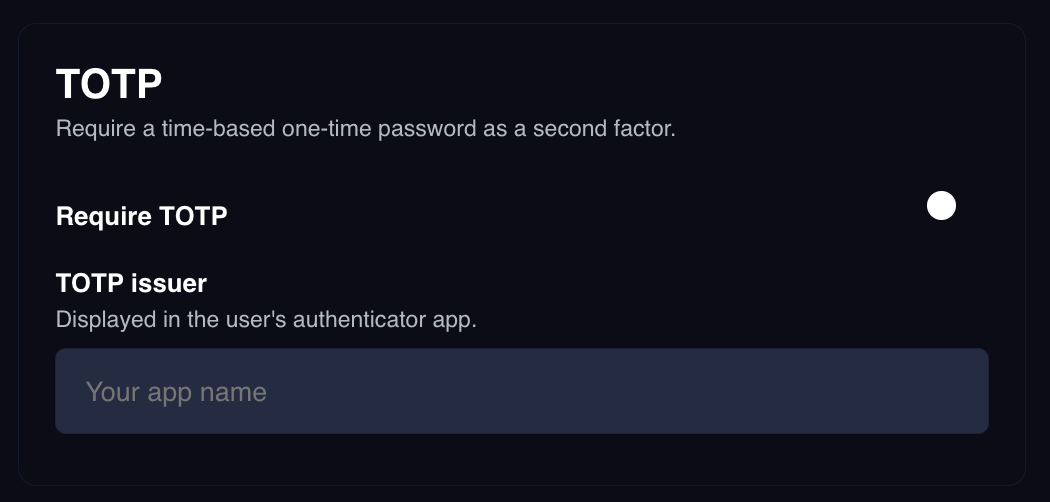 * **Require TOTP** turns the second factor on.
* **TOTP issuer** is the name shown next to the code in the user's authenticator
app. Use your product name.
Turning this on changes the shape of your sign-in flow, so read
[Two-factor authentication](/resources/authentication/two-factor-authentication)
before enabling it in Production.
## Verify your configuration
Call `GET /auth/methods` with your Auth Environment ID to confirm the environment
is live and reporting the methods you expect:
```bash theme={null}
curl --request GET \
--url https://api.portalhq.io/api/v3/auth/methods \
--header 'x-portal-auth-environment-id: '
```
```json theme={null}
{
"data": {
"allowedAuthMethods": ["EMAIL_MAGIC_LINK", "GOOGLE"],
"autoCreateWallet": true
}
}
```
A `401` here means the header does not match an environment, or **Enabled** is
still off.
## Next steps
Verify a sending domain and build your magic link email.
Create a Google OAuth client and register Portal's redirect URI.
Set up a Services ID and Sign in with Apple key.
Review who has signed in and manage their two-factor enrollment.
* **Require TOTP** turns the second factor on.
* **TOTP issuer** is the name shown next to the code in the user's authenticator
app. Use your product name.
Turning this on changes the shape of your sign-in flow, so read
[Two-factor authentication](/resources/authentication/two-factor-authentication)
before enabling it in Production.
## Verify your configuration
Call `GET /auth/methods` with your Auth Environment ID to confirm the environment
is live and reporting the methods you expect:
```bash theme={null}
curl --request GET \
--url https://api.portalhq.io/api/v3/auth/methods \
--header 'x-portal-auth-environment-id: '
```
```json theme={null}
{
"data": {
"allowedAuthMethods": ["EMAIL_MAGIC_LINK", "GOOGLE"],
"autoCreateWallet": true
}
}
```
A `401` here means the header does not match an environment, or **Enabled** is
still off.
## Next steps
Verify a sending domain and build your magic link email.
Create a Google OAuth client and register Portal's redirect URI.
Set up a Services ID and Sign in with Apple key.
Review who has signed in and manage their two-factor enrollment.