> ## Documentation Index
> Fetch the complete documentation index at: https://docs.portalhq.io/llms.txt
> Use this file to discover all available pages before exploring further.
# Two-factor authentication
> Require a TOTP code from an authenticator app as a second factor on every end user sign-in.
You can require a time-based one-time password (TOTP) as a second factor on top of
whichever sign-in method the user chose. When it is on, completing a magic link or
an OAuth sign-in is no longer enough on its own. The user also has to enter a
six-digit code from an authenticator app such as Google Authenticator, 1Password,
or Authy.
The setting is per environment and applies to all sign-in methods at once. You
cannot require a second factor for Google but not for magic links.
## Turn it on
Step 1: In the dashboard, click **Configure** in the left sidebar, under
Authentication, and select the environment.
Step 2: In the **TOTP** section, turn on **Require TOTP**.
Step 3: Set **TOTP issuer** to your product name. This is the label the user sees
next to the code in their authenticator app, so make it recognizable.
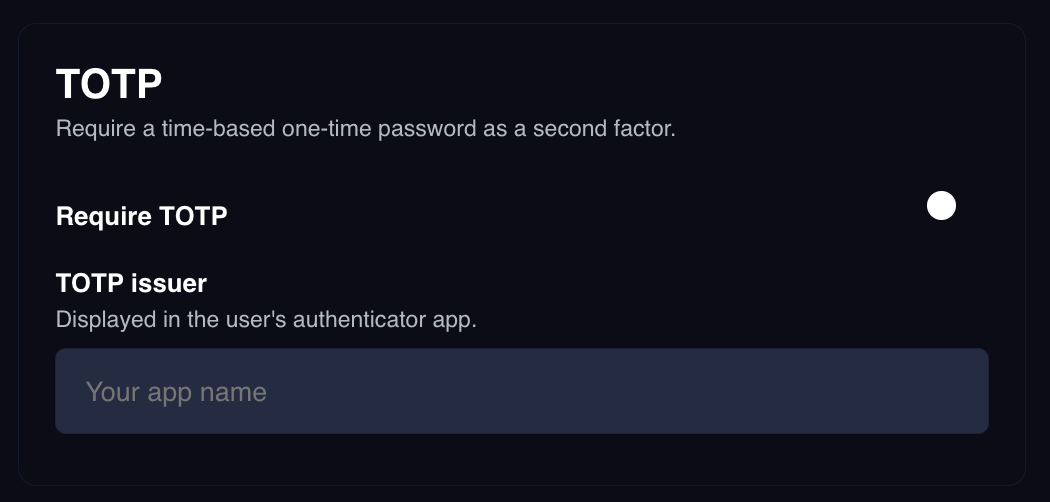 Both settings are required. If **Require TOTP** is on but **TOTP issuer** is
empty, Portal treats the environment as not requiring a second factor and
completes sign-ins without one. Always set an issuer when you enable the toggle.
## What changes in your sign-in code
With two-factor off, a validation response carries the Client Session Token and
the sign-in is done. With it on, that same response comes back with
`clientSessionToken` set to `null` and a `userJwt` instead.
There are three possible shapes. Branch on `clientSessionToken`:
```json theme={null}
{
"data": {
"endUserId": "clx1enduser00000000000000",
"clientSessionToken": "b7c1f0a2-3d4e-5f60-8a91-2b3c4d5e6f70",
"userJwt": null,
"totpLink": null
},
"metadata": null
}
```
The sign-in is complete. Use `clientSessionToken` to initialize a Portal SDK.
```json theme={null}
{
"data": {
"endUserId": "clx1enduser00000000000000",
"clientSessionToken": null,
"userJwt": "eyJhbGciOiJIUzI1NiIsInR5cCI6IkpXVCJ9.example.userjwt",
"totpLink": null
},
"metadata": null
}
```
The user already has an authenticator set up. Prompt for their code.
```json theme={null}
{
"data": {
"endUserId": "clx1enduser00000000000000",
"clientSessionToken": null,
"userJwt": "eyJhbGciOiJIUzI1NiIsInR5cCI6IkpXVCJ9.example.userjwt",
"totpLink": "otpauth://totp/Example%20App:user@example.com?secret=JBSWY3DPEHPK3PXP&issuer=Example%20App"
},
"metadata": null
}
```
The user has no authenticator yet. Render `totpLink` as a QR code for them to
scan, then prompt for their code.
### Enrollment
`totpLink` is an `otpauth://` URI, the standard format authenticator apps expect.
Render it as a QR code.
`totpLink` is returned only until the user's first successful code entry. After
that they are enrolled, and later sign-ins return `userJwt` with `totpLink` set to
`null`. If a user abandons the sign-in before entering a code, they are still not
enrolled and will get a `totpLink` again next time.
## Validate the code
Send the `userJwt` as a Bearer token alongside your Auth Environment ID:
```bash theme={null}
curl --request POST \
--url https://api.portalhq.io/api/v3/auth/totps/validations \
--header 'x-portal-auth-environment-id: ' \
--header 'Authorization: Bearer ' \
--header 'Content-Type: application/json' \
--data '{ "code": "123456" }'
```
```json theme={null}
{
"data": {
"clientSessionToken": "b7c1f0a2-3d4e-5f60-8a91-2b3c4d5e6f70"
},
"metadata": null
}
```
This is the only endpoint in the Authentication API that takes two credentials.
The Auth Environment ID identifies the environment and the `userJwt` identifies
the half-finished sign-in.
## Reset a user's authenticator
If a user loses their device, reset their enrollment from the dashboard. Go to
**Authentication > End Users**, open the user, and reset their TOTP enrollment.
Their next sign-in returns a fresh `totpLink` so they can set up a new
authenticator. See [End users](/resources/authentication/end-users).
## Next steps
Review who has signed in and reset two-factor enrollment.
Full reference for the TOTP validation endpoint.
Both settings are required. If **Require TOTP** is on but **TOTP issuer** is
empty, Portal treats the environment as not requiring a second factor and
completes sign-ins without one. Always set an issuer when you enable the toggle.
## What changes in your sign-in code
With two-factor off, a validation response carries the Client Session Token and
the sign-in is done. With it on, that same response comes back with
`clientSessionToken` set to `null` and a `userJwt` instead.
There are three possible shapes. Branch on `clientSessionToken`:
```json theme={null}
{
"data": {
"endUserId": "clx1enduser00000000000000",
"clientSessionToken": "b7c1f0a2-3d4e-5f60-8a91-2b3c4d5e6f70",
"userJwt": null,
"totpLink": null
},
"metadata": null
}
```
The sign-in is complete. Use `clientSessionToken` to initialize a Portal SDK.
```json theme={null}
{
"data": {
"endUserId": "clx1enduser00000000000000",
"clientSessionToken": null,
"userJwt": "eyJhbGciOiJIUzI1NiIsInR5cCI6IkpXVCJ9.example.userjwt",
"totpLink": null
},
"metadata": null
}
```
The user already has an authenticator set up. Prompt for their code.
```json theme={null}
{
"data": {
"endUserId": "clx1enduser00000000000000",
"clientSessionToken": null,
"userJwt": "eyJhbGciOiJIUzI1NiIsInR5cCI6IkpXVCJ9.example.userjwt",
"totpLink": "otpauth://totp/Example%20App:user@example.com?secret=JBSWY3DPEHPK3PXP&issuer=Example%20App"
},
"metadata": null
}
```
The user has no authenticator yet. Render `totpLink` as a QR code for them to
scan, then prompt for their code.
### Enrollment
`totpLink` is an `otpauth://` URI, the standard format authenticator apps expect.
Render it as a QR code.
`totpLink` is returned only until the user's first successful code entry. After
that they are enrolled, and later sign-ins return `userJwt` with `totpLink` set to
`null`. If a user abandons the sign-in before entering a code, they are still not
enrolled and will get a `totpLink` again next time.
## Validate the code
Send the `userJwt` as a Bearer token alongside your Auth Environment ID:
```bash theme={null}
curl --request POST \
--url https://api.portalhq.io/api/v3/auth/totps/validations \
--header 'x-portal-auth-environment-id: ' \
--header 'Authorization: Bearer ' \
--header 'Content-Type: application/json' \
--data '{ "code": "123456" }'
```
```json theme={null}
{
"data": {
"clientSessionToken": "b7c1f0a2-3d4e-5f60-8a91-2b3c4d5e6f70"
},
"metadata": null
}
```
This is the only endpoint in the Authentication API that takes two credentials.
The Auth Environment ID identifies the environment and the `userJwt` identifies
the half-finished sign-in.
## Reset a user's authenticator
If a user loses their device, reset their enrollment from the dashboard. Go to
**Authentication > End Users**, open the user, and reset their TOTP enrollment.
Their next sign-in returns a fresh `totpLink` so they can set up a new
authenticator. See [End users](/resources/authentication/end-users).
## Next steps
Review who has signed in and reset two-factor enrollment.
Full reference for the TOTP validation endpoint.