

End users are keyed on email address within an environment. The same person
signing in to your Development and Production environments is two separate end
users with two separate wallets, which is expected. A person arriving with two
different email addresses is also two end users, so decide how you want that to
behave if you offer several sign-in methods.
Browse end users
Step 1: Click End Users in the left sidebar, under Authentication. Step 2: Select the environment whose users you want to see.
Search by email address or end user ID to find a specific user.
Inspect an end user
Click a row to open the detail view, which is organized into three cards.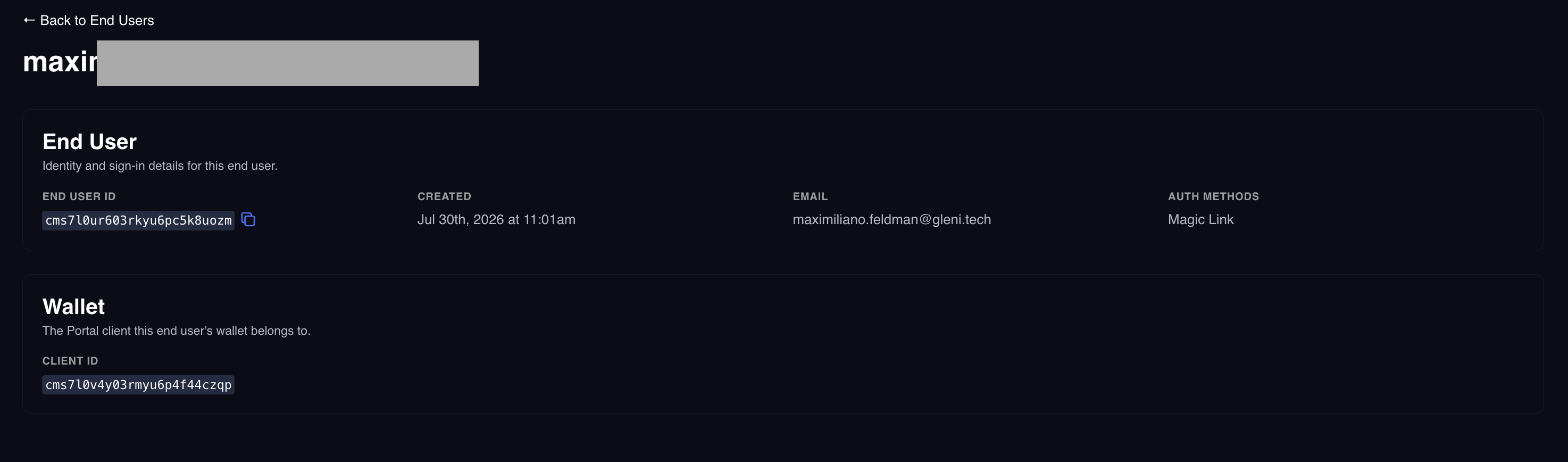
- End User shows the end user ID, when they were created, their email, and the auth methods they have used.
- Wallet shows the client ID associated with the user.
- TOTP shows whether they are enrolled in two-factor authentication, and lets you reset it. This is not shown if TOTP is not enabled.
Reset two-factor enrollment
If a user loses the device holding their authenticator app, reset their enrollment. Step 1: Open the user from Authentication > End Users. Step 2: In the TOTP card, click Reset TOTP and confirm. The card switches from Enrolled to Not enrolled. On their next sign-in Portal returns a freshtotpLink, so your app shows the QR code again and they set
up a new authenticator. See
Two-factor authentication.
The reset option only appears for users who are currently enrolled.
Next steps
Two-factor authentication
How the TOTP flow works from your app’s side.
Overview
Back to how Portal-managed authentication fits together.